ip
Echo User Guide
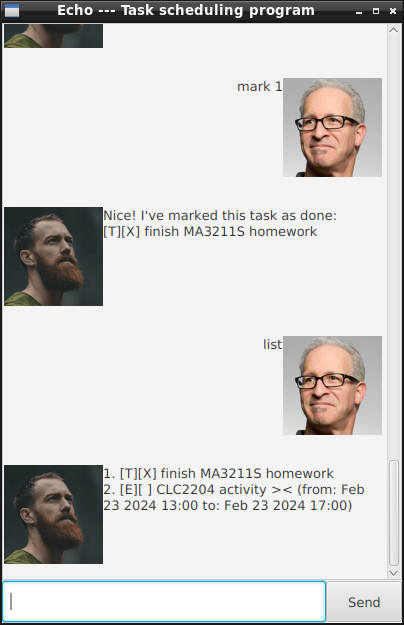
This is CS2103T’s iP project, which contains basic features to manage pending tasks, deadlines and events.
Running program
To run the program, download the JAR file from GitHub at https://github.com/E0735389/ip/releases, then run with the following command:
java -jar echo.jar
Once you open the program, you should be greeted with a GUI window with a prompt. Type in commands in order to perform various tasks.
Adding to-do tasks
You can type in todo ⟨task description⟩ in order to add a to-do task.
Example: todo homework
Then, the program should respond with, for example:
Got it. I've added this task:
[T][ ] homework
Now you have 1 task in the list.
A to-do task consists of only a task description.
The meaning of the [T][ ] part in the output will be explained below,
in the
“Marking a task as done” section
and the
“Adding deadline tasks” section.
Listing the current tasks
Typing the command list should list all the tasks. For example, the output could be:
1. [T][ ] homework
Marking a task as done
A task can be marked as done with the mark command.
In the situation above, typing mark 1 will output:
Nice! I've marked this task as done:
[T][X] homework
As we can see, the second box shows whether the task is done. [X] means the task is done, and [ ] means it isn’t.
Adding deadline tasks
Apart from to-do task, we can also add other types of tasks.
A deadline task is one that must be done before a specific time.
For example, you can type
deadline finish CS2103T iP /by 2024-02-23 23:59
in order to add a deadline with description “finish CS2103T iP”
and due at “2024-02-23 23:59”.
The program should respond with:
Got it. I've added this task:
[D][ ] finish CS2103T iP (by: Feb 23 2024 23:59)
Now you have 2 tasks in the list.
This time, the first box contains [D] instead of [T]: D stands for deadlines, T stands for to-do.
Adding event tasks
An event task is one that occurs at a specific time.
For example, you can type
event undergraduate math seminar /from 2024-02-21 14:00 /to 2024-02-21 18:00
in order to add an event with description “undergraduate math seminar”
that happens between 14:00 and 18:00 on 2024-02-21.
For events, the first box would contain [E].
Deleting a task
You can delete a task by typing delete ⟨task number⟩.
For example, typing delete 2 will delete the second task in the list.
Finding tasks by keyword
You can find tasks by typing find ⟨keyword⟩.
For example, typing find CS2103T will find all tasks with “CS2103T” in their descriptions.
Exiting the program
You can exit the program by typing bye, or by the same method as used to exit a normal GUI application.
Saving the data
The program saves the data in the hard disk automatically after any command that changes the data. There is no need to save manually.
Command summary
- Add to-do task:
todo ⟨task description⟩ - List tasks:
list - Mark a task as done:
mark ⟨task number⟩ - Add deadline task:
deadline ⟨task description⟩ /by ⟨due time⟩ - Add event task:
event ⟨task description⟩ /from ⟨start time⟩ /to ⟨end time⟩ - Delete a task:
delete ⟨task number⟩ - Find reminders by keyword:
find ⟨keyword⟩ - Exit the program:
bye
Acknowledgement
- Some AI assistance was used to fill in repetitive/boilerplate of the code.
- The images, and much of the GUI code, are taken from JavaFX tutorial part 3 on SE-EDU.